Desk size decides which of these setups fits: a wide desk can hold 2 Monitors with a laptop on its own stand, a Compact Desk does better with an Ultrawide Monitor or Monitor Arms, and the tightest spot calls for a Vertical Laptop Stand.
Measure your width before buying anything, because the viewing distances run from 20–24 inches for a 24-inch monitor to 30–40 inches for a 34-inch ultrawide.
1. L-shaped Desk
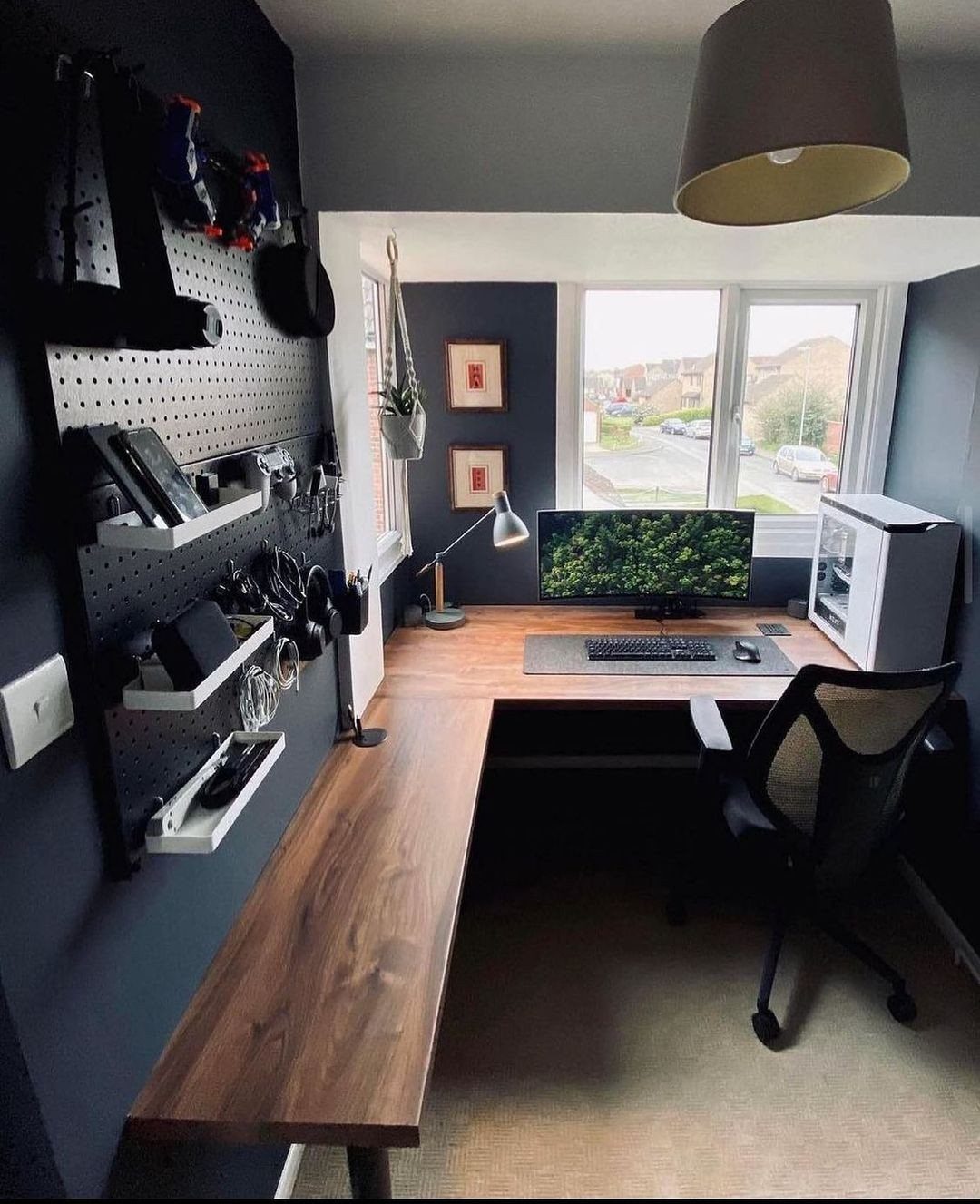
A corner run gives you two work surfaces, so the laptop and its paperwork can live on one wing while the monitor sits on the other.
I like that setup because you can swivel instead of cramming everything onto one line.
Set the long side of an L-shaped desk against the wall under a window, keep the short return within arm’s reach of the chair, and use the wall above it for shelves or a pegboard.
A pegboard keeps tools off the desktop, which matters when the surface is already full.
2. Monitor at Eye Level
Your neck does less work when the top edge of the screen sits level with your eyes or a little below.
Stack the monitor on a riser or a few books to get there. A laptop screen alone can’t get there, since it sits low next to the keyboard.
Keeping the laptop and keyboard below with the monitor lifted above them is the cleanest way to fix it. A stand or a stack of sturdy books costs little, and you can tune the height in minutes.
3. Use a Vertical Laptop Stand
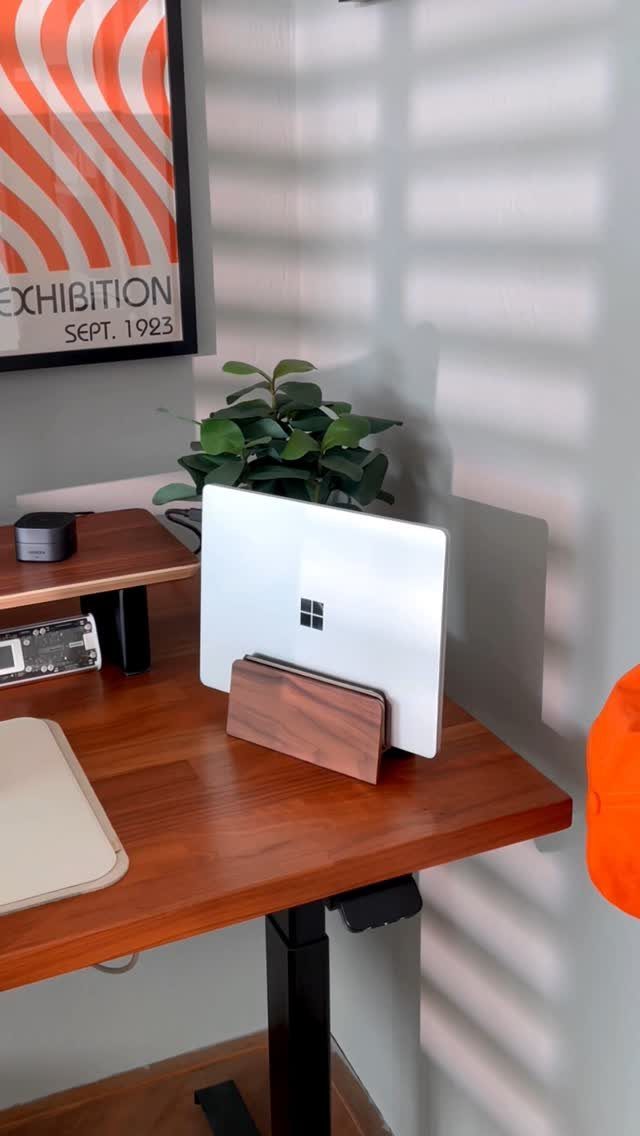
Setting one screen straight in front of you is the simplest rule for a desk where a single display does most of the job.
A vertical stand holds the laptop upright, so it takes up only a narrow strip of desk.
That frees room for a keyboard and a notebook, which suits a small desk.
A vertical stand holds the laptop closed and upright, so the built-in screen and keyboard are out of use, and you’ll need an external monitor, keyboard and mouse to work comfortably.
4. Desk for Two Monitors, Laptop, and Peripherals
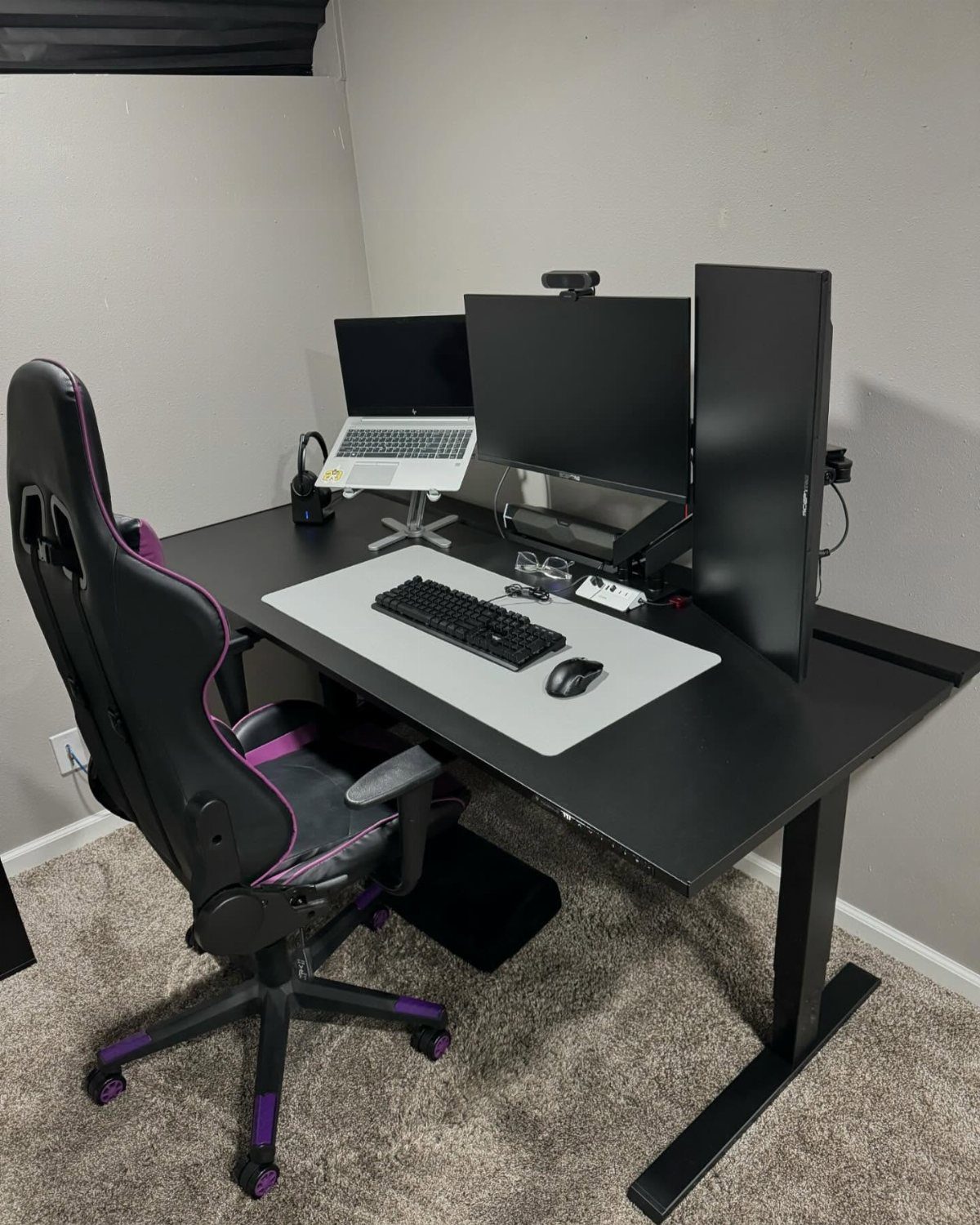
A wide desk can carry 2 monitors, a laptop on its own stand, a keyboard and a mouse without any of them fighting for space.
Lifting the laptop on a stand frees the surface below it and brings its screen closer to the monitors’ height.
I’d center the main monitor on the keyboard and let the second one sit off to the side.
Roll the chair back from the desk first, and make sure it clears the edge and the wall behind it with room to stand up.
5. Two Monitors
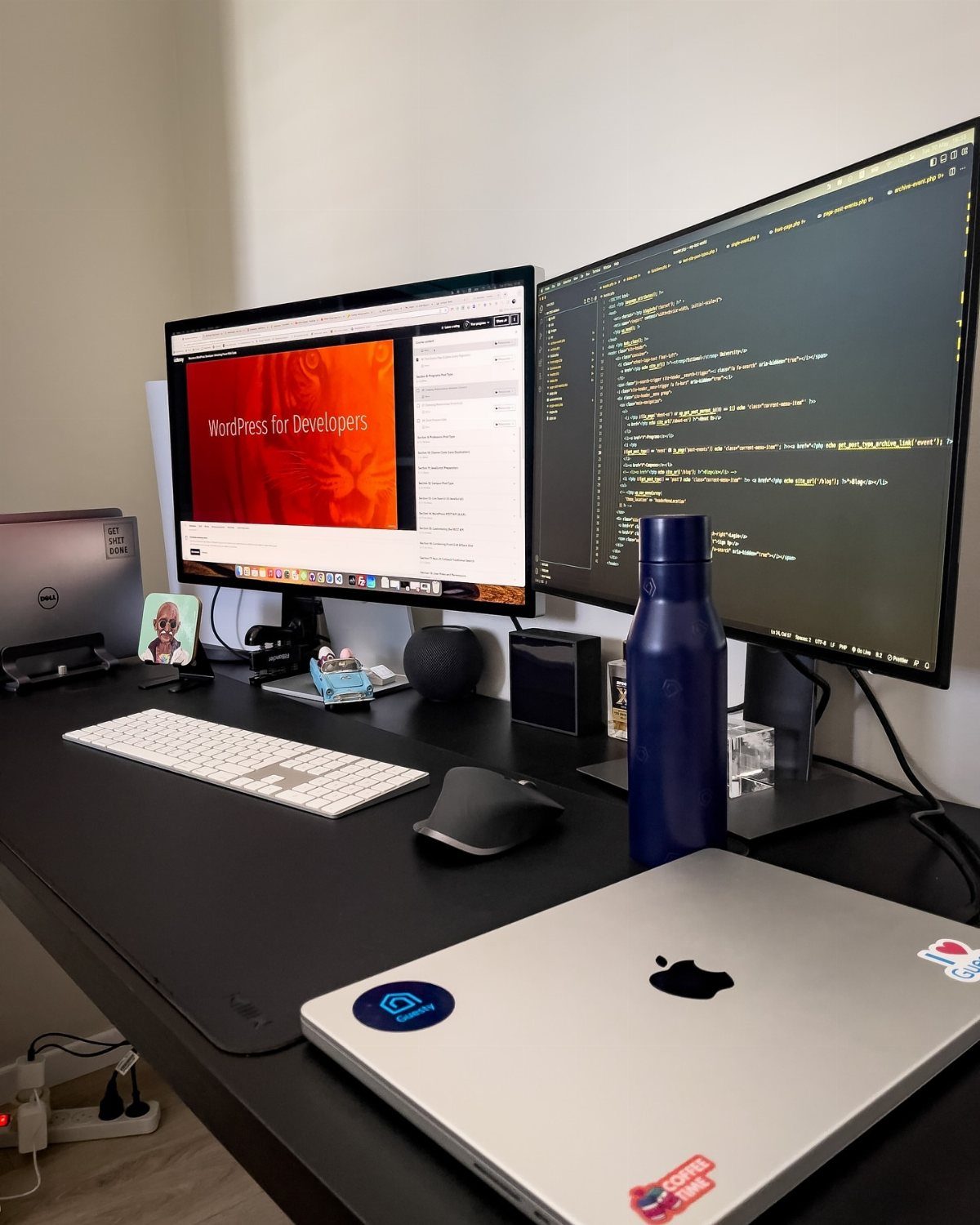
Two monitors work best when the one you use most sits right in front of you and the other angles in beside it. Splitting the pair evenly down the middle forces your head to turn constantly.
Match the tops of both screens at the same height, and tuck a closed laptop to the side if it’s only there for power or backup.
Cable clutter grows fast with this setup, so tie the cords together behind the desk.
6. Ultrawide Monitor
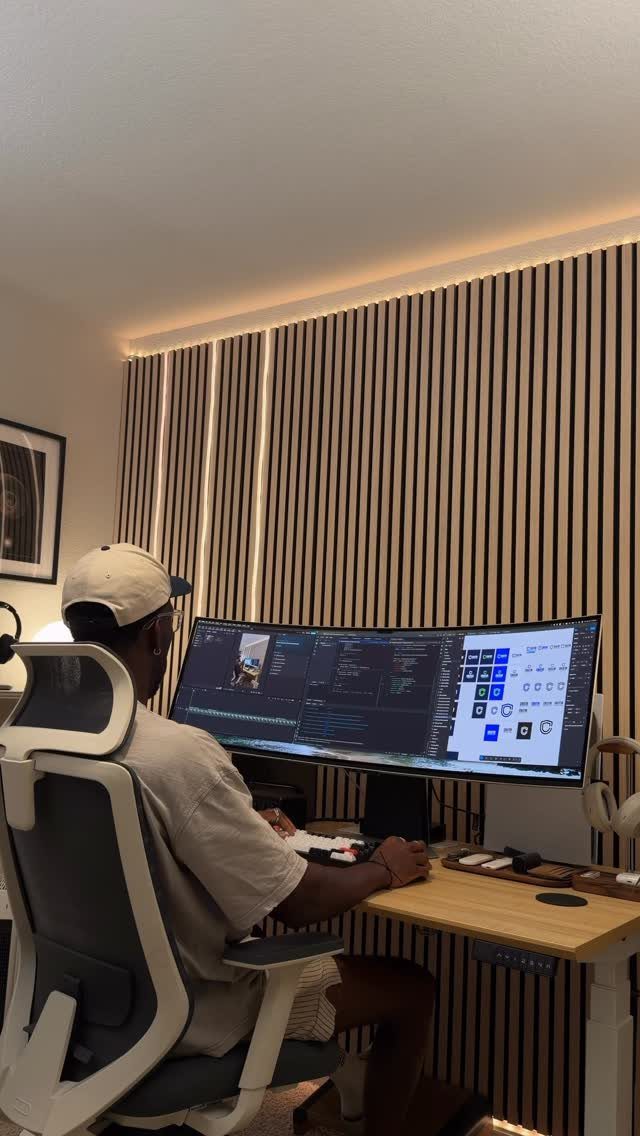
One curved ultrawide monitor replaces a two-screen pair and removes the bezel gap running down the middle of your view. For someone with limited desk depth, that is one stand instead of two.
Center it on your keyboard, and sit far enough back that you can see the whole screen edge to edge without sweeping your head. The trade-off is that it takes a wide desk, so measure your width before you buy.
7. Compact Desk
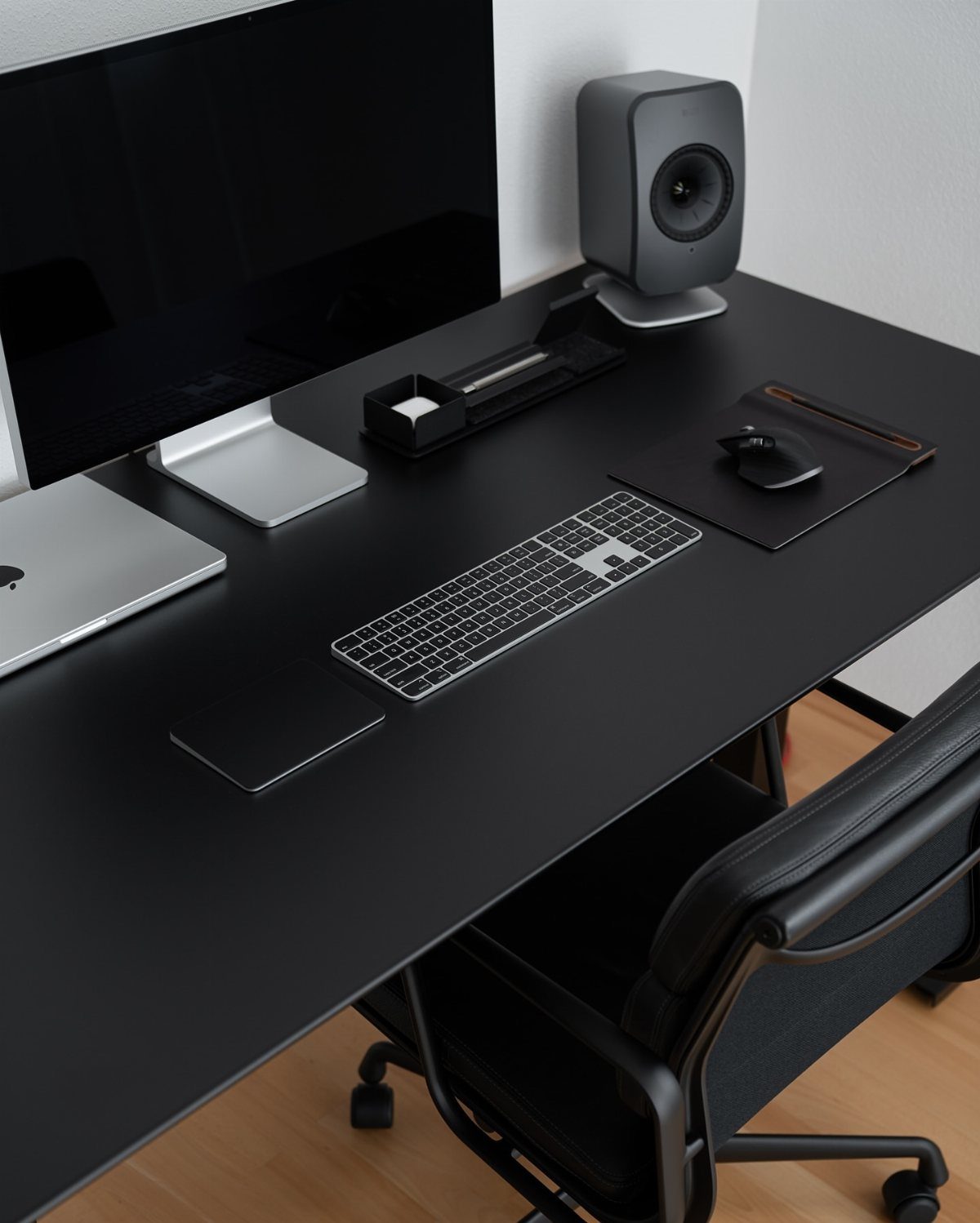
I like it because nothing extra is allowed on the surface.
Wireless peripherals cut the cord clutter that makes a small desk feel crowded. Slide the chair fully under the desk when you finish, so the room keeps its open floor.
Before adding anything new, ask what you would have to remove to make room for it.
8. Monitor Arms
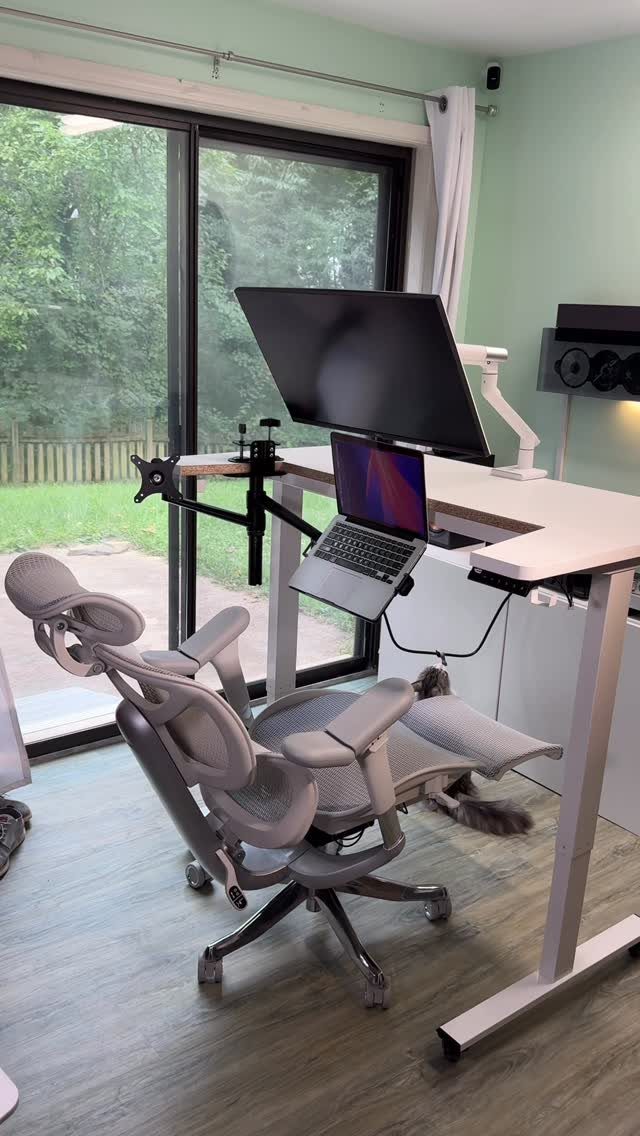
A monitor arm clamps to the desk and lifts the screen off the surface, which gets rid of the wide base that normally eats up desk space.
The area below the screen is then free for a keyboard, a notebook or a laptop mount.
I’d pick an arm for any desk where the monitor feels like it takes over. You can pull the screen closer or push it back, and set the height in seconds.
Check that your desk edge can take a clamp before you buy.
9. Laptop Stand
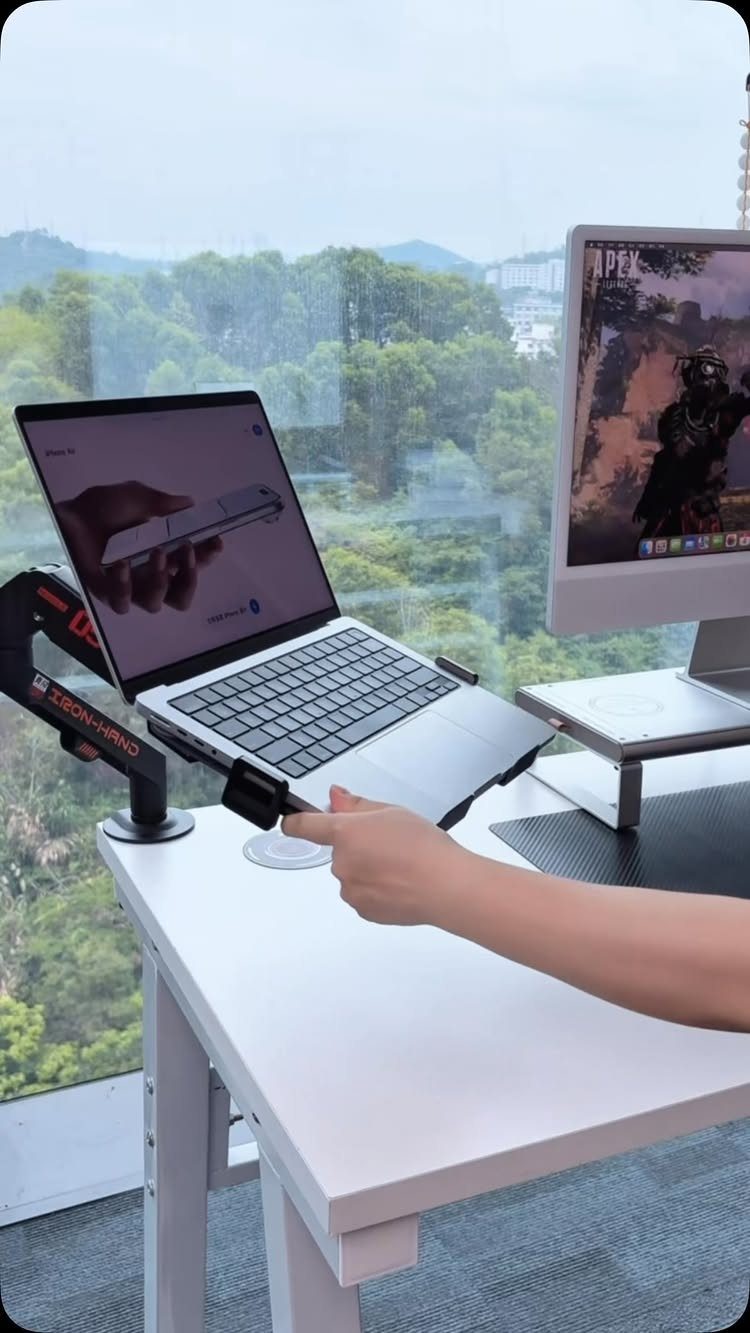
A laptop stand raises the laptop screen toward eye level, so you stop looking down at it all day. Pair it with a separate keyboard and mouse, since the raised keyboard on the laptop is awkward to type on.
An adjustable stand is my pick over a fixed one. You can tilt it to match the monitor beside it and fine-tune the angle by hand.
Keep the laptop screen and the monitor close in height, and your eyes stop jumping between 2 levels.
10. Monitor Above Laptop Setup
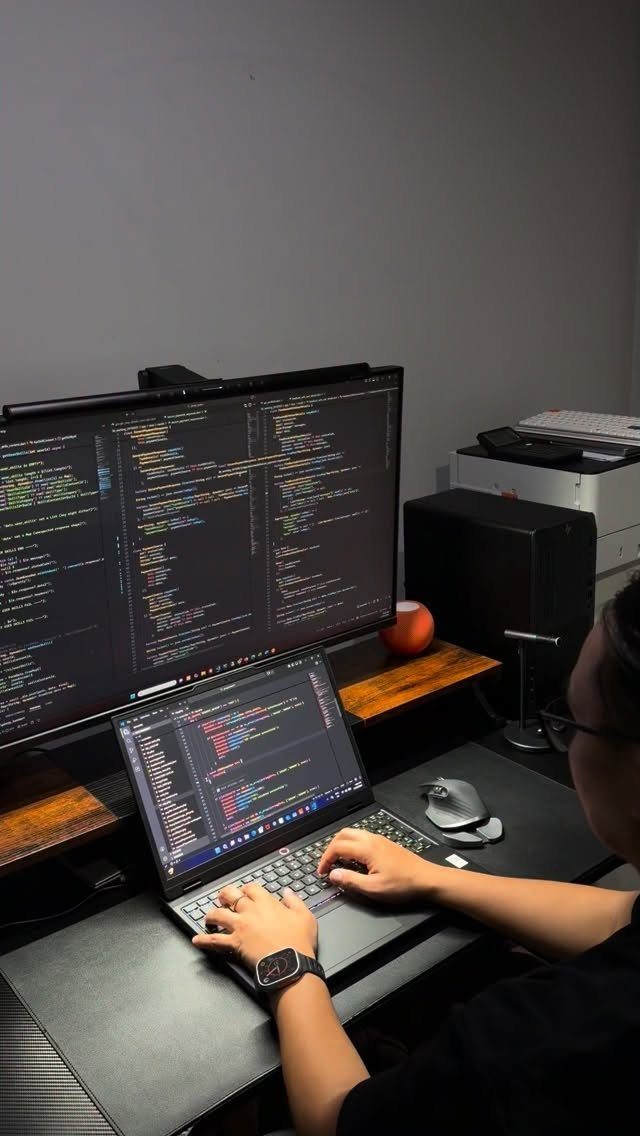
Mounting the external monitor directly above an open laptop stacks 2 screens in a column, so the desk needs little width. Code, reference pages or a video call can live up top while you type below.
Neck strain is the cost of this layout, since a screen stacked above the laptop pulls your eyes upward all day.
Looking up at the top screen for long stretches gets tiring, so keep the monitor’s lower edge close to the laptop’s top edge and tilt it back slightly.
Use the top screen for things you glance at, and keep the main work on the lower one.
11. Standing Desk Dual-Laptop Setup
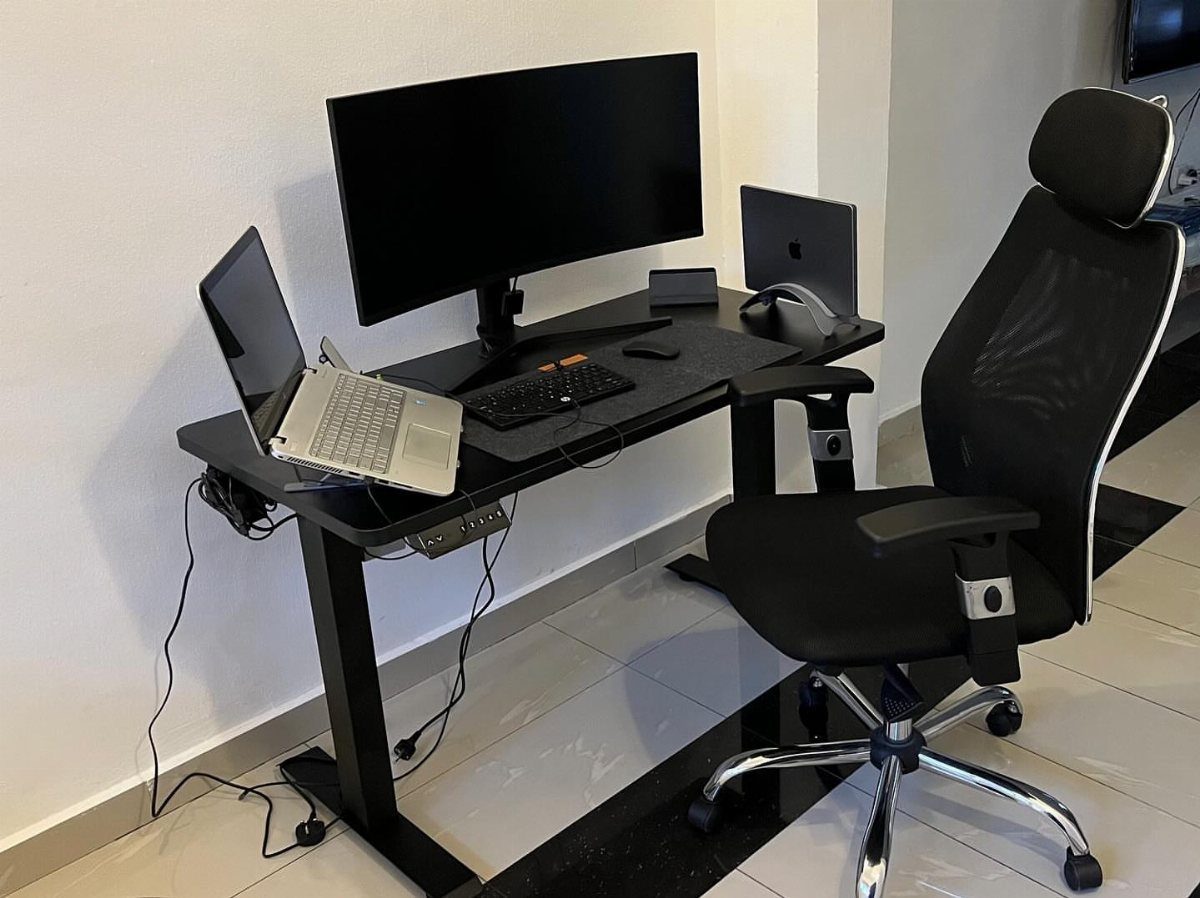
Putting a large monitor in the center with one laptop open on the left and a second docked on the right gives two machines their own space. That suits anyone juggling a work laptop and a personal one.
A standing desk lets you change position through the day, and a chair stays nearby for when your legs tire. Keep the center monitor aligned with your keyboard, and use the open laptop as a side screen.
Dock the second laptop closed to save desk room.
12. Side-by-side Laptop and Monitor
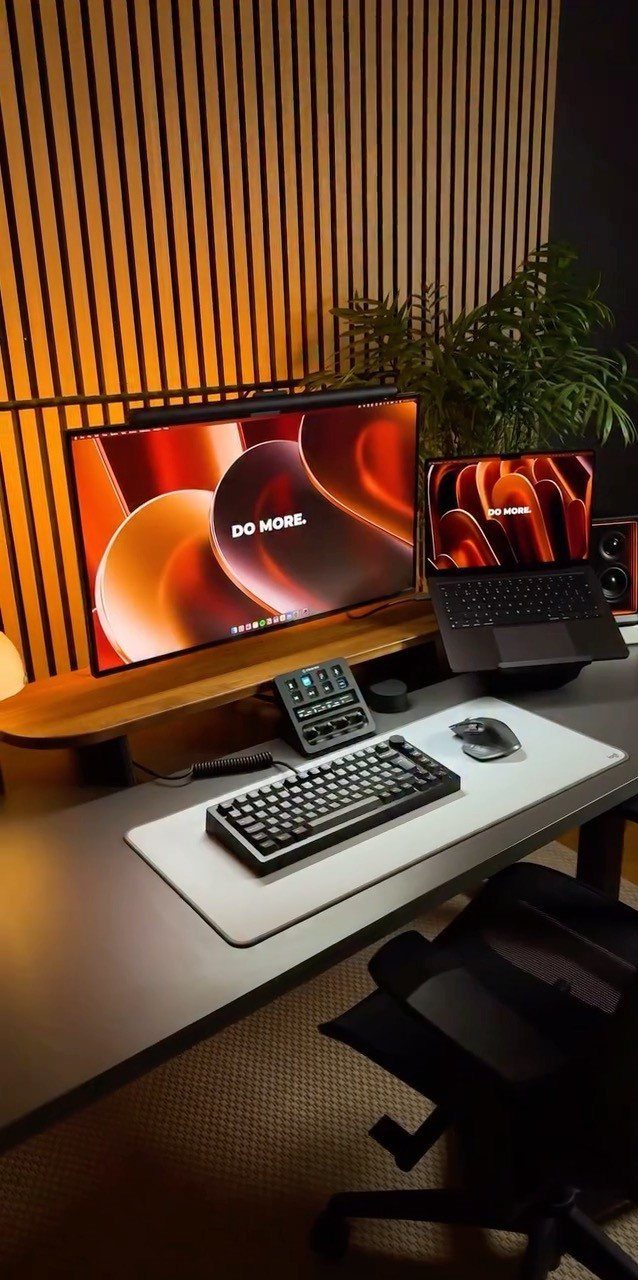
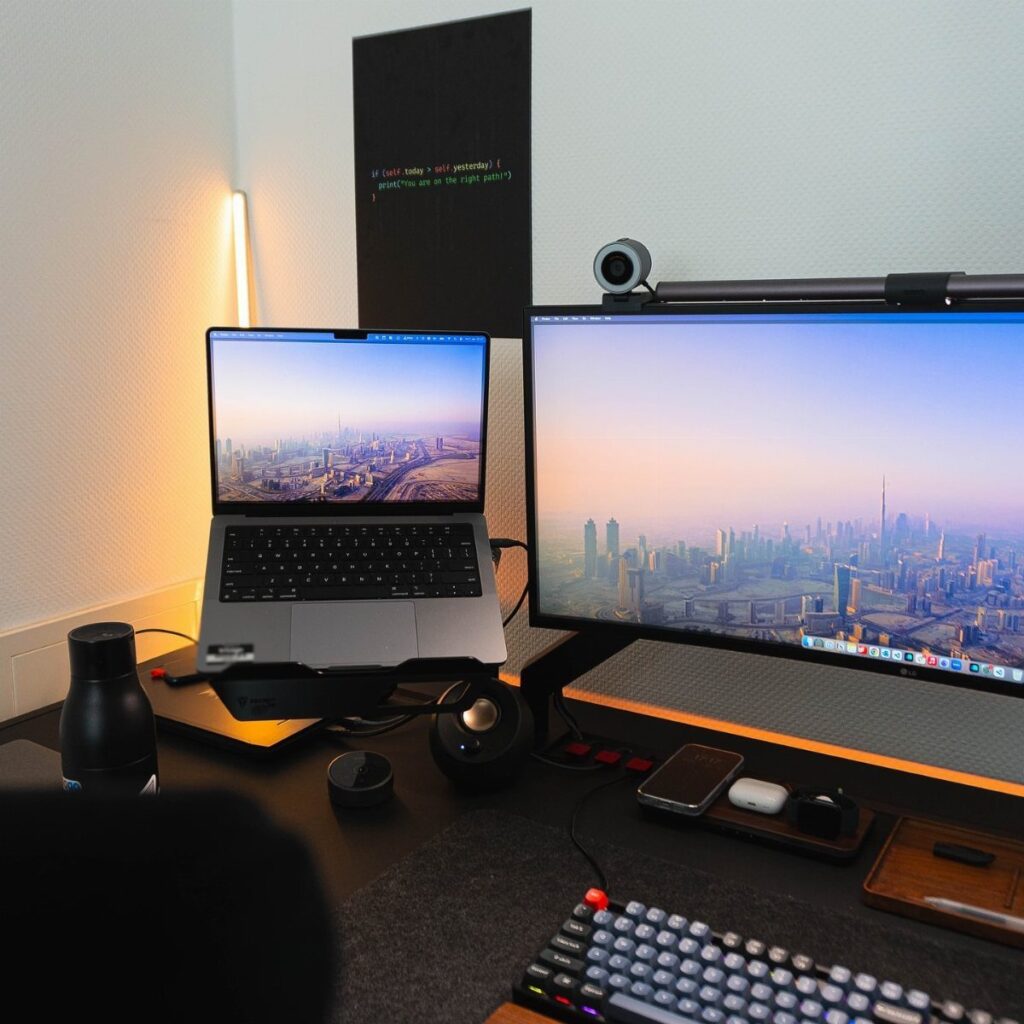
Setting the laptop right beside the monitor works best when both screens sit close in height and share a wallpaper, which makes the pair read as one wide display. That is a cheap trick, and it costs nothing.
I’d center the keyboard on the monitor and treat the laptop as the side screen, maybe for chat or notes.
If the laptop sits lower than the monitor, a stand closes the gap.
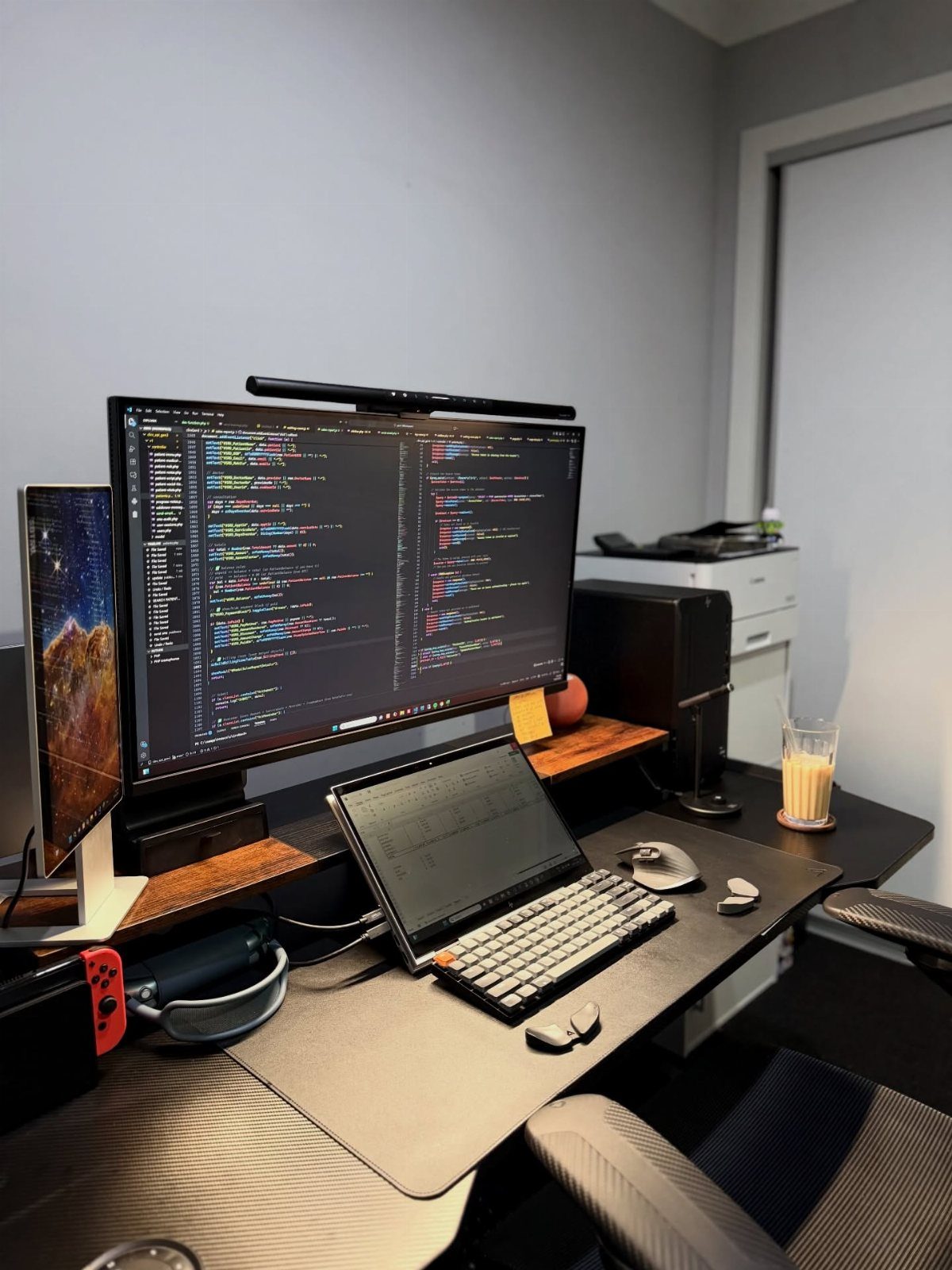
13. Wooden Monitor Riser Setup
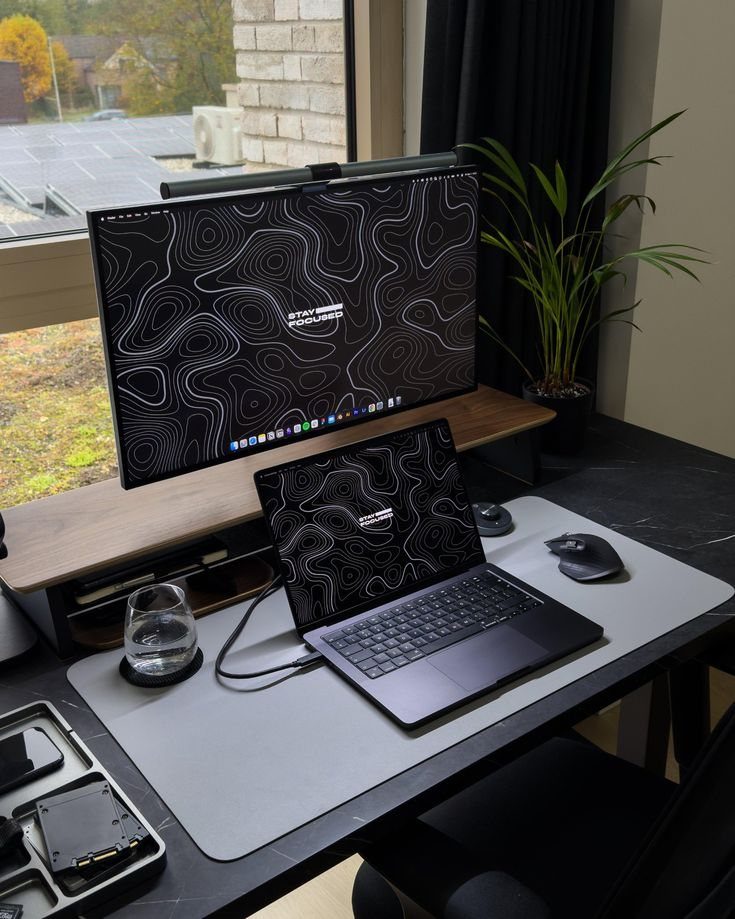
A wooden riser lifts both the monitor and the laptop above the dark desk mat, which keeps them off the desktop and clear of clutter.
The mouse and a small plant stay on the desk around the riser, so the setup still has some breathing room.
Wood warms up a dark desk, and I’d choose a riser wide enough that the monitor’s feet sit fully on it with no overhang.
Set the laptop on the riser beside the screen, and match the two wallpapers so they read as one display.
Slide the keyboard under the riser when you’re done working, and the surface clears in seconds.
Importance of Ergonomics
Chronic wrist strain and a hunched neck position shouldn’t be part of the job. They are signals that the setup needs adjusting, and ignoring them usually makes them chronic.
A beautiful desk doesn’t fix this on its own. Posture has to become the default, so check your wrists, neck and shoulders at the start of each work session until the right position feels normal.
If something aches by midafternoon, change one thing at a time: screen height, keyboard position or chair. Then see whether the ache eases before touching anything else.
Viewing Distance Recommendations
Start with the screen size, then sit where the numbers say.
For a 24-inch monitor, 20–24 inches away works. A 27-inch wants 24–30 inches, a 32-inch wants 30–36 inches, and a 34-inch ultrawide wants 30–40 inches.
Too close tires your eyes, and too far makes text hard to read.
A quick check works with any screen: extend your arm toward the monitor. Your fingertips should just barely touch it.
Treat these figures as a baseline, then nudge the monitor forward or back until text is easy to read without leaning in.
Transitioning Between Setups
Switching between a laptop alone and a full monitor setup goes faster if you repeat the same steps every time.
- Use a dock or hub so the laptop can move without pulling every cable with it.
- Plug in, then check that video, charging and the webcam all work before you sit down.
A docking station isn’t required, and neither is running the laptop closed. That depends on your laptop’s ports, operating system, display settings and habits, so try it before buying anything.
If you spend most of your time on one screen, arrange the desk around that mode and treat the other as secondary.
Frequently Asked Questions
How do you set up monitors on a desk?
Whichever screen you use most belongs straight ahead, lined up with the middle of the keyboard, with the second one angled in at its side for glancing at.
What is the best ergonomic setup for a laptop?
Raise the laptop on a stand so the screen sits near eye level, then type on a separate keyboard and mouse. The built-in keyboard becomes awkward once the laptop is lifted.
How far should you sit from a monitor?
It depends on the screen size.
A 24-inch monitor wants 20–24 inches, a 27-inch wants 24–30, a 32-inch wants 30–36, and a 34-inch ultrawide wants 30–40. Extending your arm should let your fingertips just touch the screen.